
Edit translations
Correct translated wording on your website. Learn how to save corrections, how they are reused and what happens after English content changes.
Last updated on 15 November 2026
Before you start editing, you must have access to your website in Polyglot Studio!
Polyglot is already integrated with Isomer websites. Non-Isomer websites must complete technical integration first. You can open Admin Mode while the public widget is disabled.
Correct wording that needs attention
A translation override is a saved correction to an AI translation. Use one when agency terminology, meaning or context needs a more precise translation. You can make the correction directly on your website through Admin Mode.
How to correct a translation
Log in to Polyglot Studio (opens in new tab).
Select your website.
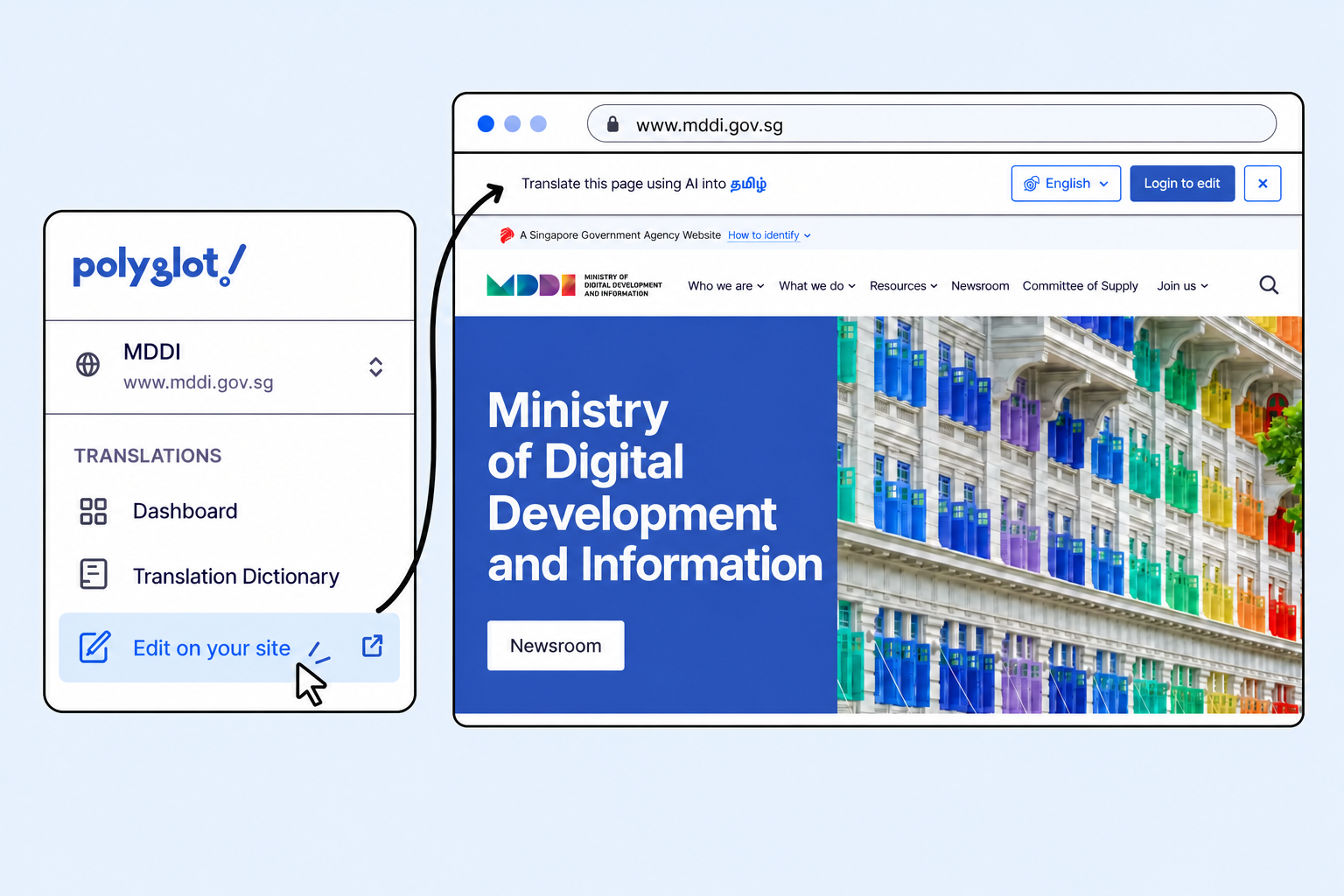
Select "Edit on your site" in Polyglot Studio, and then "Login to edit" in the widget.
Select Edit on your site to open the website in a new tab.
In the widget, select Login to edit.
Choose the language you want to review.
Select Edit translations.

Compare the translation with the original English before selecting Save translation.
Select the text you want to correct.
Check the proposed wording against the original English text.
Saved corrections take effect immediately.
Check the wording before you save. If the public widget is enabled, visitors can see the saved correction.
Select Save translation to save your correction.
When your English content changes
Publishing changes to your English content is treated as a website update and invalidates the website’s existing translation overrides. After publishing, review the translations again and reapply corrections where needed.
How saved corrections are reused
Polyglot matches the original English sentence exactly, including capitalisation. A saved correction can be reused when that same sentence appears again. This includes a sentence consisting of one word, such as ‘Government’. This is sentence matching, not a rule that replaces a word wherever it appears inside longer sentences.