
Preview translations
Review translations on your live website before enabling the public widget. Learn how to open Admin Mode and check your content.
Last updated on 15 November 2026
Preview while the public widget is off
Admin Mode lets authorised editors review translations on the live website while the public widget is disabled. It provides editing controls that visitors do not see. Previewing or editing does not itself enable the public widget.
Preview controls who can see the widget, it is not a separate draft-approval workflow.
Saved corrections take effect immediately.check your wording before saving.
Step 1: Prepare your website
Make sure you can access your website in Polyglot Studio (opens in new tab). Polyglot is already integrated with Isomer websites. For non-Isomer websites, your technical team must first complete integration of Polyglot.
Don't have access yet? See Getting started.
Step 2: Open the preview
Log in to Polyglot Studio.
Select your website.
Select Edit on your site.
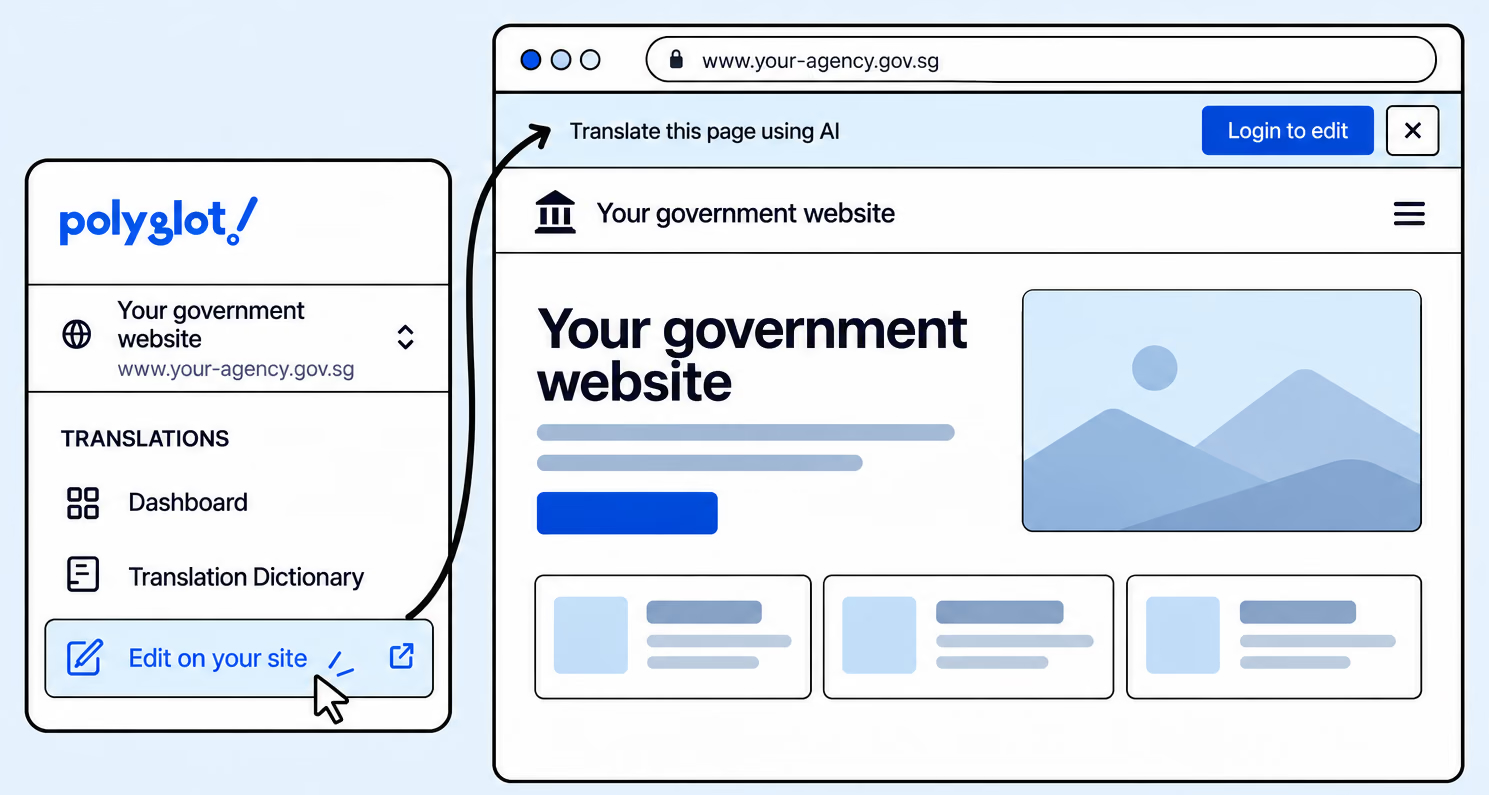
Connect your Studio session using Login to edit.
In the widget, select Login to edit.
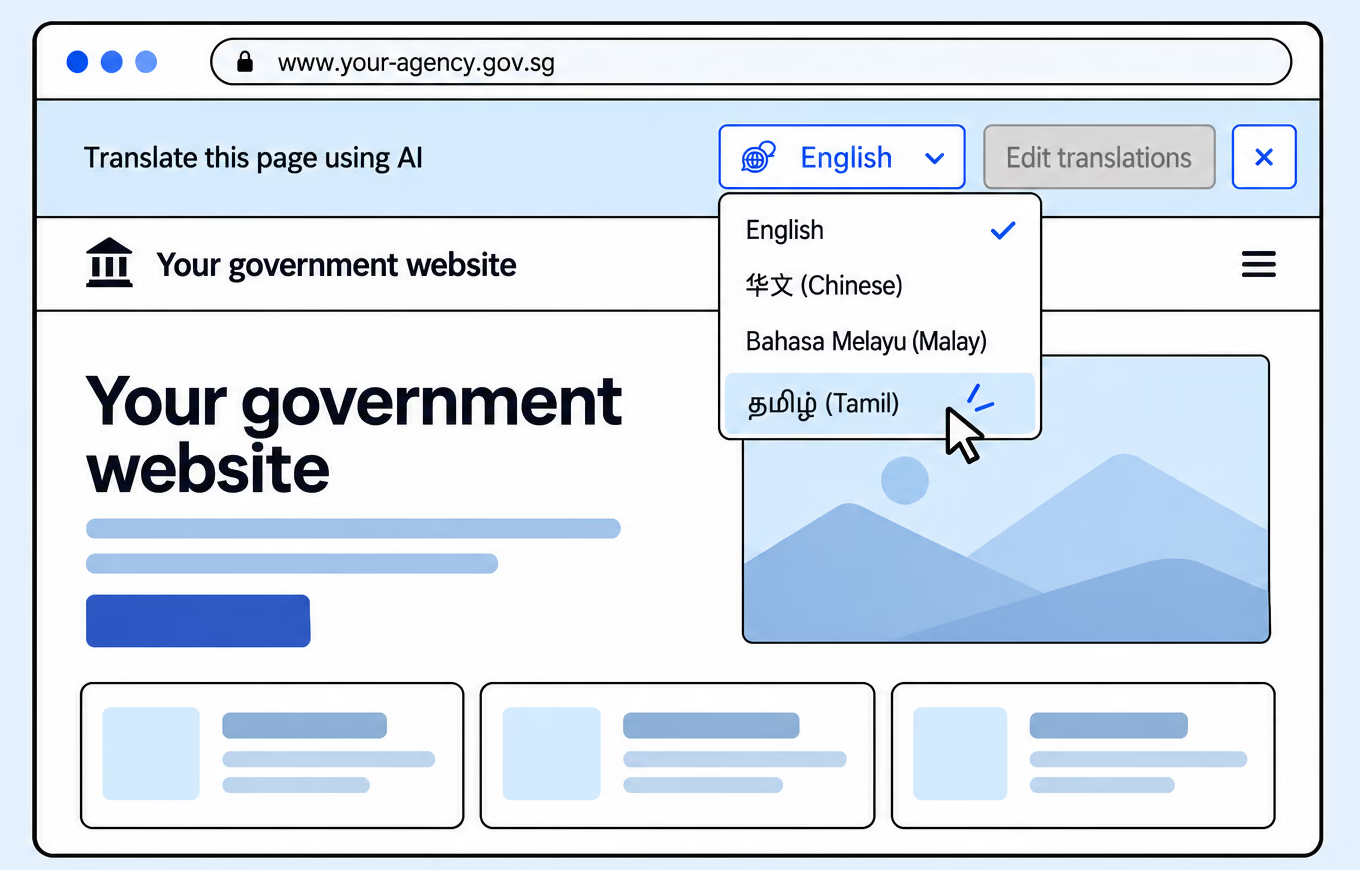
Choose a language to review the translated page.
Choose Chinese, Malay or Tamil and review the page.
Step 3: Check through before content launch
Even though the Polyglot team together with MDDI assists agencies to ensure translation accuracy, do review important information before enabling the public widget.
We recommend checking pages that have high impact, they are typically a combination of one or more in your website:
Top 5-10 most visited pages
Pages with critical information to citizens (e.g. Eligibility schemes)
Pages with information that cannot be mistranslated (e.g. Names of foreign dignitaries)
Step 4: Review again if there are any updates to the existing site
This step is necessary if a page that's identified as high impact is updated.
Publishing an update to the website invalidates the website’s existing translation overrides. Review the translations again and reapply corrections where needed.
Step 5: Enable translations for visitors
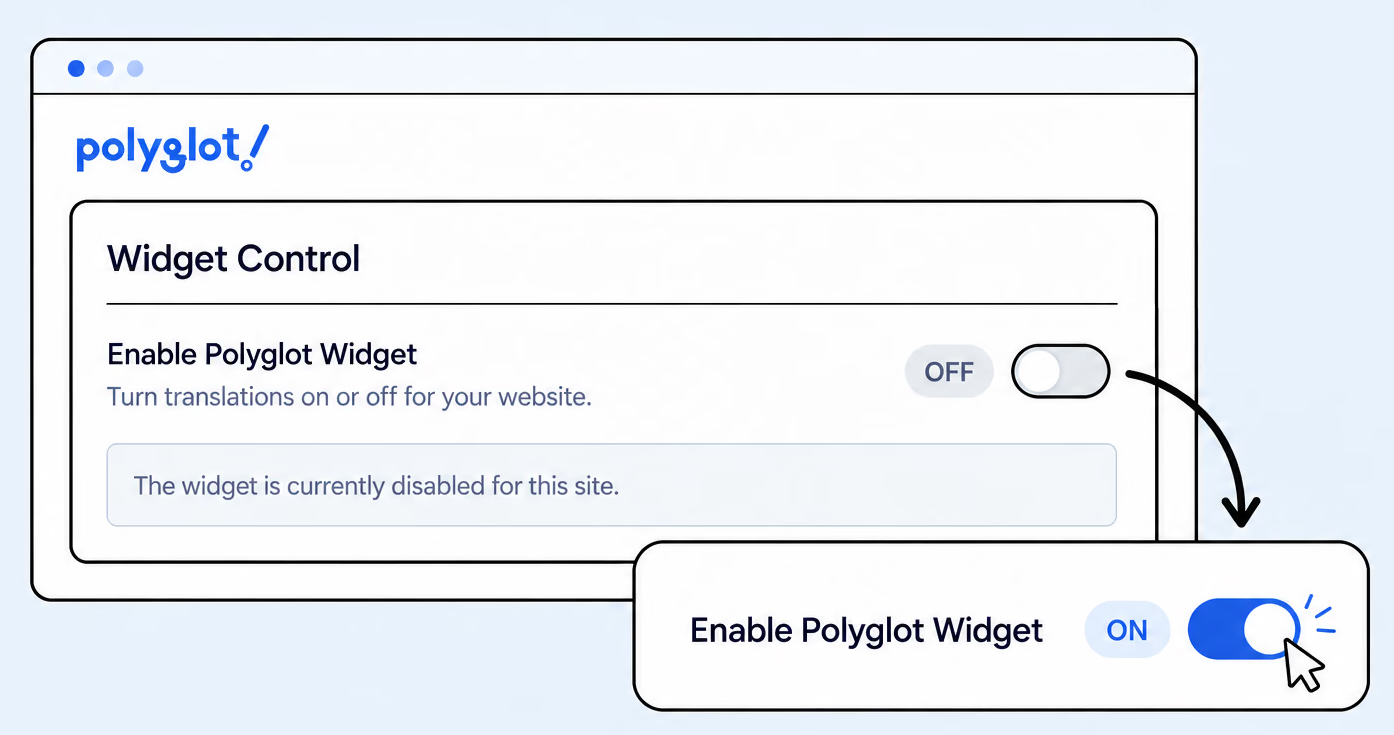
Enable Polyglot Widget controls public visibility. Select Save after changing it.
Open your website in Polyglot Studio.
Select Widget Control.
Turn on Enable Polyglot Widget.
Select Save.
Open an allowed page in a signed-out browser and check each translation language.
Need to prevent visitors from seeing translations?
In Widget Control, turn off Enable Polyglot Widget and select Save. This hides the public widget; it does not remove the installed script. Authorised editors can still use Admin Mode.